


 By Rachel Mantei, Dynamics 365 Technical Consultant
You have spent many hours building a complex engine via Power Automate but you need to transfer the entire packaged flow to another environment.
Have no fear, we will help you walk through this process below.
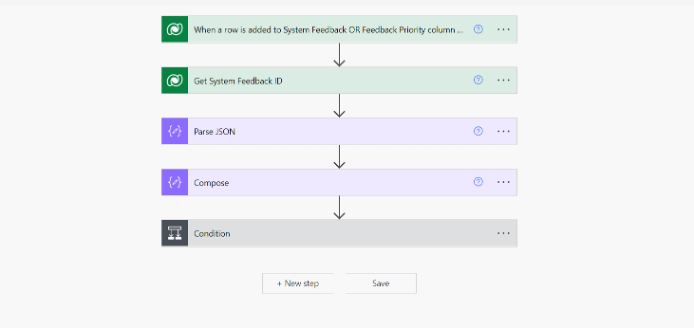
Exporting your Power Automate Flow
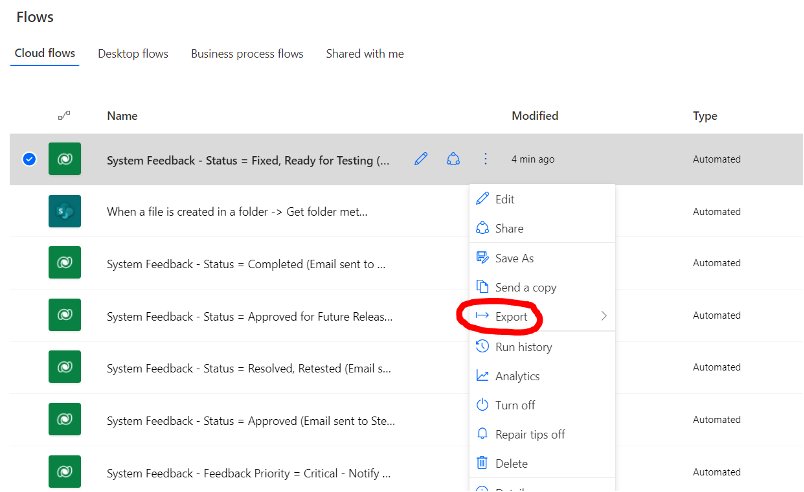
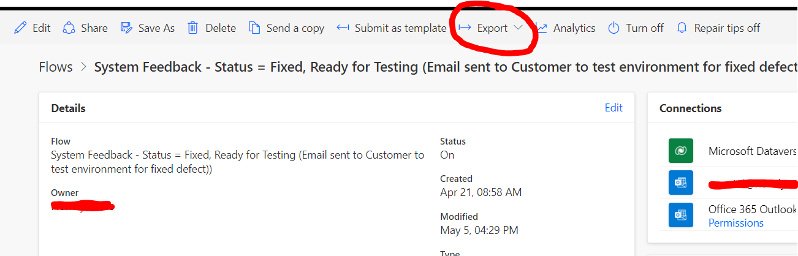
From the Flows Homepage, you can access the export button in one of two ways:
-
By hovering over the flow, selecting the ellipsis and clicking on the Export option to choose Package (.zip)
-
Opening the flow and navigating to the top menu, clicking on the Export option and selecting Package (.zip)
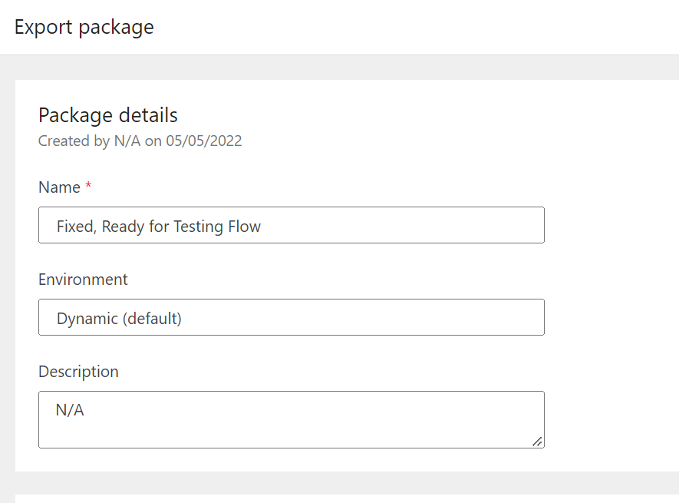
 On the next screen, enter a unique name and description for your package first. You can then configure defaults and add comments in case, which will be accessible during the import phase.
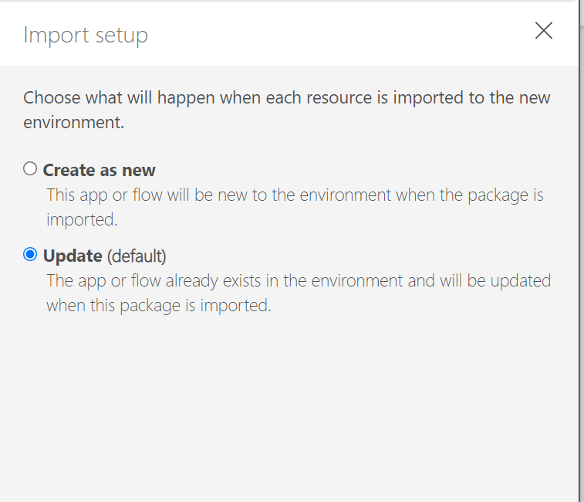
Important: This next step will depend on if you are creating a new flow in the import environment or if you are updating an existing flow.
-
Updating an existing flow: the flow already exists in the environment and will be updated when this package is imported.
-
Creating a flow in import environment: the flow will be created as a new flow into the environment where the package is imported.

-
Once Updated or Create as New is selected, navigate to the bottom right of the page and select “Export”.
Either take note of where the file is saved in your Downloads or save it in a custom folder in your file explorer.
Importing your Power Automate Flow
Navigate to the top right navigation and select the environment that you want to import the flow.
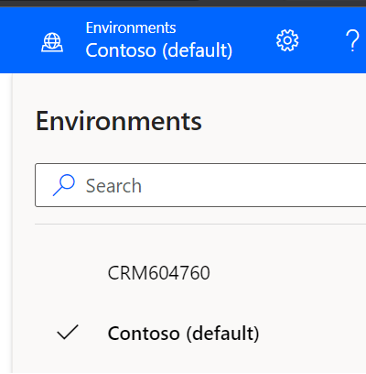
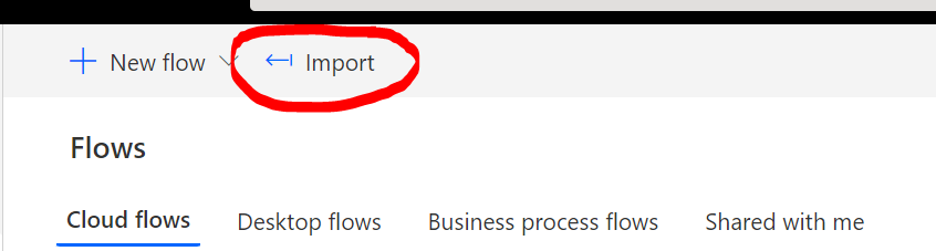
After selecting the import environment in the new window that opens, navigate to the top left of the navigation bar, and select “Import”.
Upload the .zip package folder and select Import at the bottom right of the screen. If you did not select your connectors before import, you will need to set them up before finishing the import
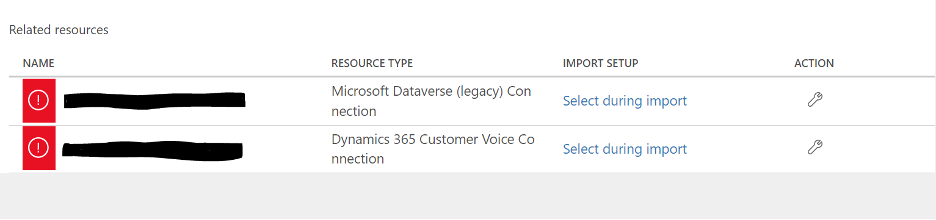
Select Import Setup “Select during import.” In the popup window, create a new connector or select a connector that has previously been set up
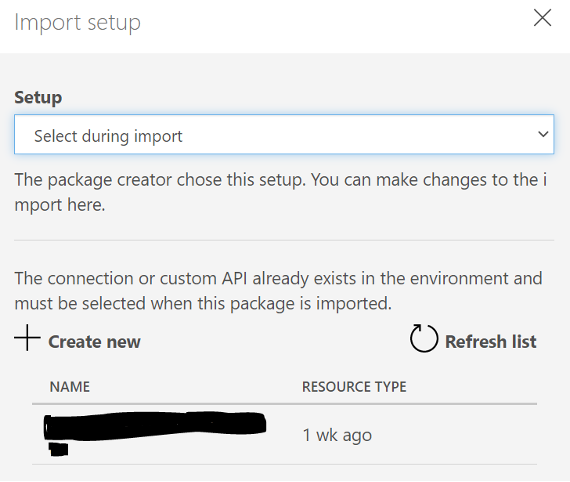
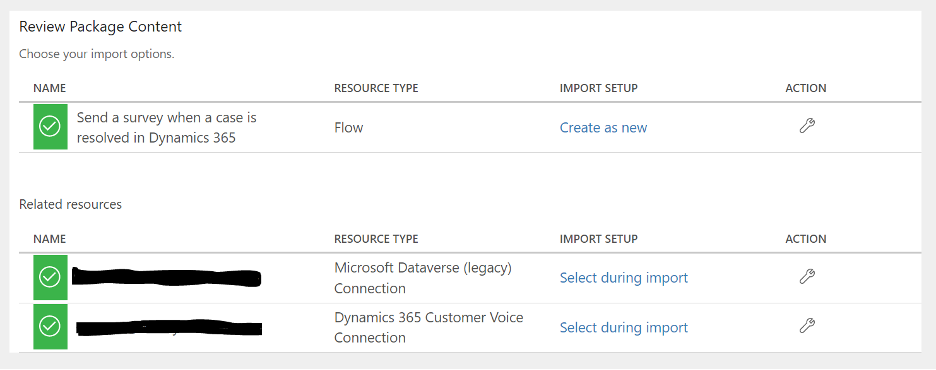
Save the pop-up window. Select Import on the bottom right of the home screen. Your package will be imported if there are no errors. If there are no errors, you will see green check marks on all the Package Contents.
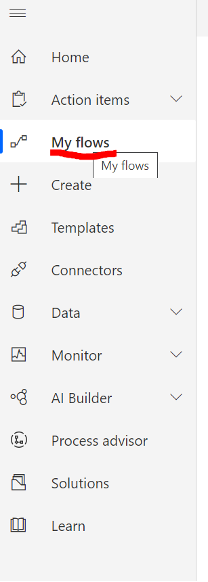
You will find your flow in the Flow home page under “My Flows”
We’re always ready to help you get the most out of your Dynamics 365 solutions. If you have questions about the above scenario or other D365 functions, please reach out via the form below.


