



Need to add metadata to the D365 Document Associated Grid connected to the SharePoint Document Library? We ran across this use case when a client needed to add a column that shows how many files are within each folder within SharePoint.
To add additional fields to the Document Associated Grid view you will need to:
- Navigate to the solution
- Add the “SharePoint Document” table to the solution
- Once the table is added, open the table, and navigate to the views
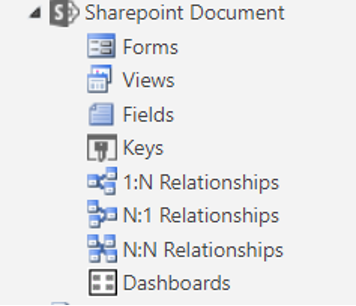
- On the top navigation, select “Add Subcomponents”

- In the new window, you will look for the view named, “Document Associated Grid”, select “Finish”
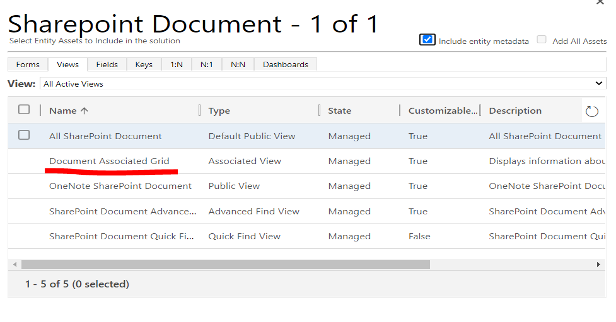
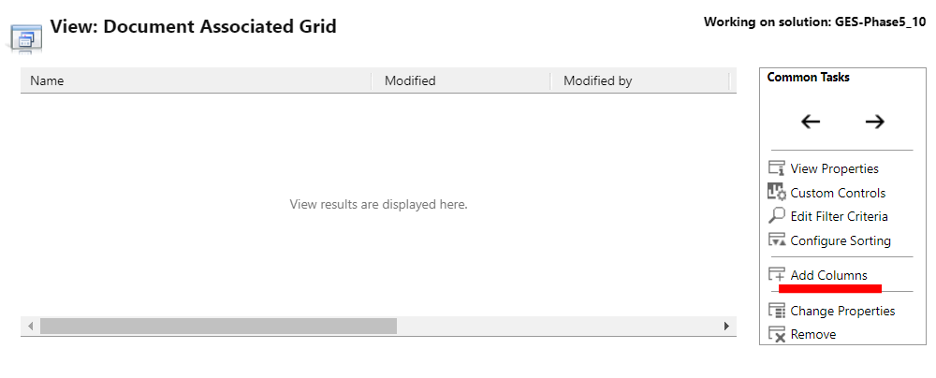
- Open the Document Associated Grid
- In the new window, click on “Add columns” on the right navigation
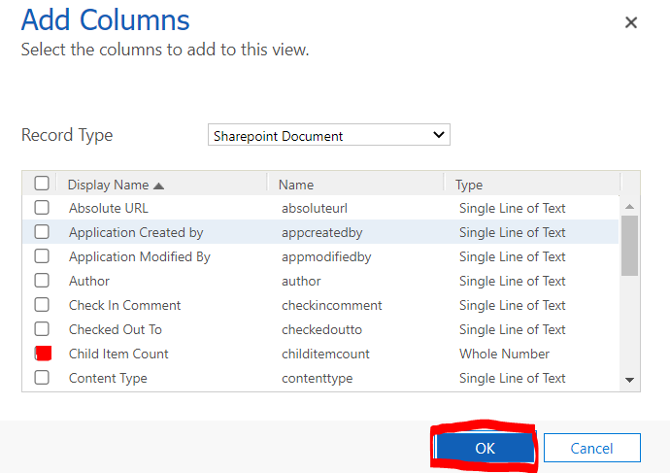
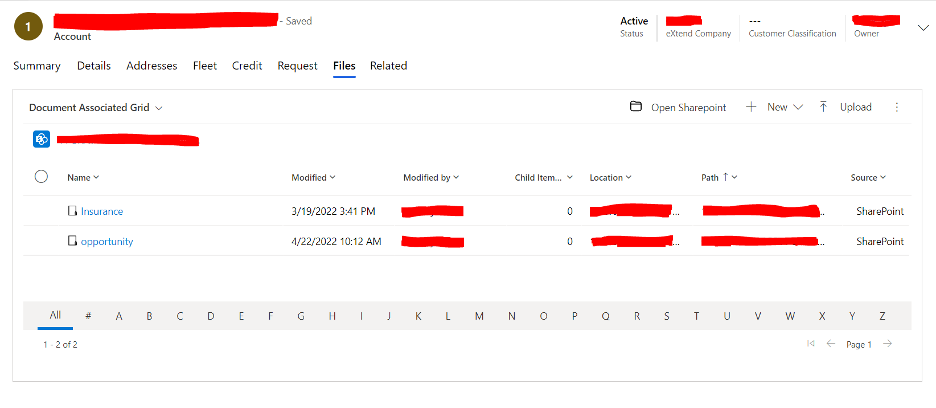
- Select the columns that you would like to add to the view (in our case, our client wanted to view the file count within the folders. So, we will select Child Item Count). Select “Ok”.
- Move the column to the location you want it in the view by clicking the arrows left or right on the right-hand navigation. Save & Close, then publish.
- You will now see the Child Item Count (or the columns that you chose) on your Documents Associated Grid.
We’re always ready to help you get the most out of your Dynamics 365 solutions. If you have questions about the above scenario or other D365 functions, please reach out via the form below.


