

Microsoft Power Apps Portal Pages How To – Bringing in images into the Portal from Dynamic 365 CRM via Liquid and HTML 

Close-up of a person’s hands typing on a black computer keyboard, with part of a desk and a notebook visible in the background—ideal for tasks like using Microsoft D365 or Dynamics 365 Customer Engagement.

Table of Contents

A middle-aged man with short dark hair smiles at the camera in front of a dark, out-of-focus background with partial red and white text. He is wearing a light-colored collared shirt, ready to discuss Dynamics 365 Customer Engagement solutions.


By Rachel Mantei, Dynamics 365 Technical Consultant
2025 Update: This blog was written Power Apps Portal Pages was renamed Power Pages.


Rachel Mantei here with part 2 of 4 of my Microsoft Power Apps Portal Pages How To Series. Part 2 of this series looks at bringing in images into the portal from Dynamic 365 CRM via Liquid and HTML.

You want to bring in an image column into the portal. 
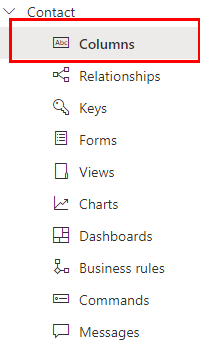
1. Create an image column within the table that you want the image data to be pulled from 

A vertical menu is shown in Microsoft D365 with “Columns” highlighted in red. Other menu items listed are Relationships, Keys, Forms, Views, Charts, Dashboards, Business rules, Commands, and Messages.
Photo 1

2. Select “New Column 

image 22
Photo 2

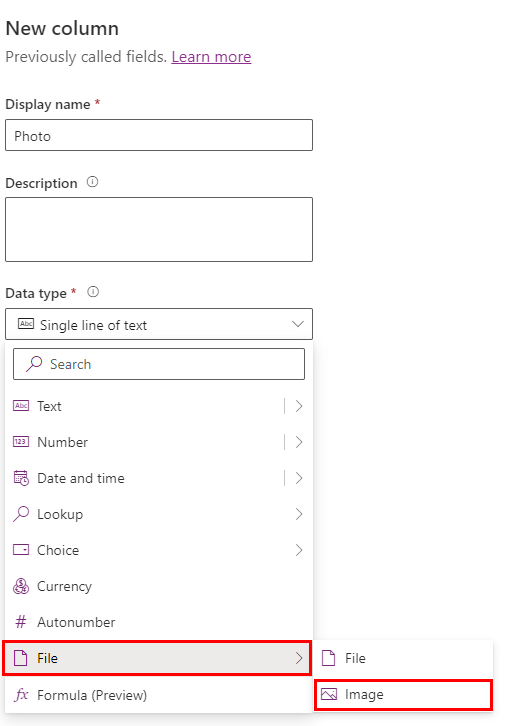
3. Under the Data Type, select File -> Image 

Screenshot of the New column setup in a Dynamics 365 Customer Engagement form, with the Data type dropdown open. The File option is expanded, showing File and Image, with Image highlighted with a red box.
Photo 3

4. Add the column to the form. Save and Publish. 

5. Build out your fetch xml. These steps can be found here.

6. After building out your fetch xml query from the table that includes a photo column. Include that photo column by encapsulating it in one of the two image tags below: 

Within a bootstrap card: 

image 32
Photo 4

OR

A line of HTML code for an image tag sourcing from yourdomainname.com with parameters for articlelistsername and shortlistsername, using variable placeholders—ideal for Power Platform consulting or Microsoft D365 template integration.
Photo 5

With either of those image tags, you will be able to show your image within the portal instance. 

With this information, you will be able to add dynamic images from records within your CRM environment to be surfaced on the portal.  

Let us know what scenarios this feature would help you with; we are always excited to hear from our clients and their success stories using Microsoft products. 

Note: This blog was written before Power Apps Portal Pages was renamed to Power Pages.

Author

Join the Community

If you found this blog helpful, subscribe to receive our monthly updates.

Table of Contents
Share with your network

What our Customers Say